
Navigation
Select and Apply Settings
Review, Make Adjustments, and Assign
View Assignments in a Class
Navigation
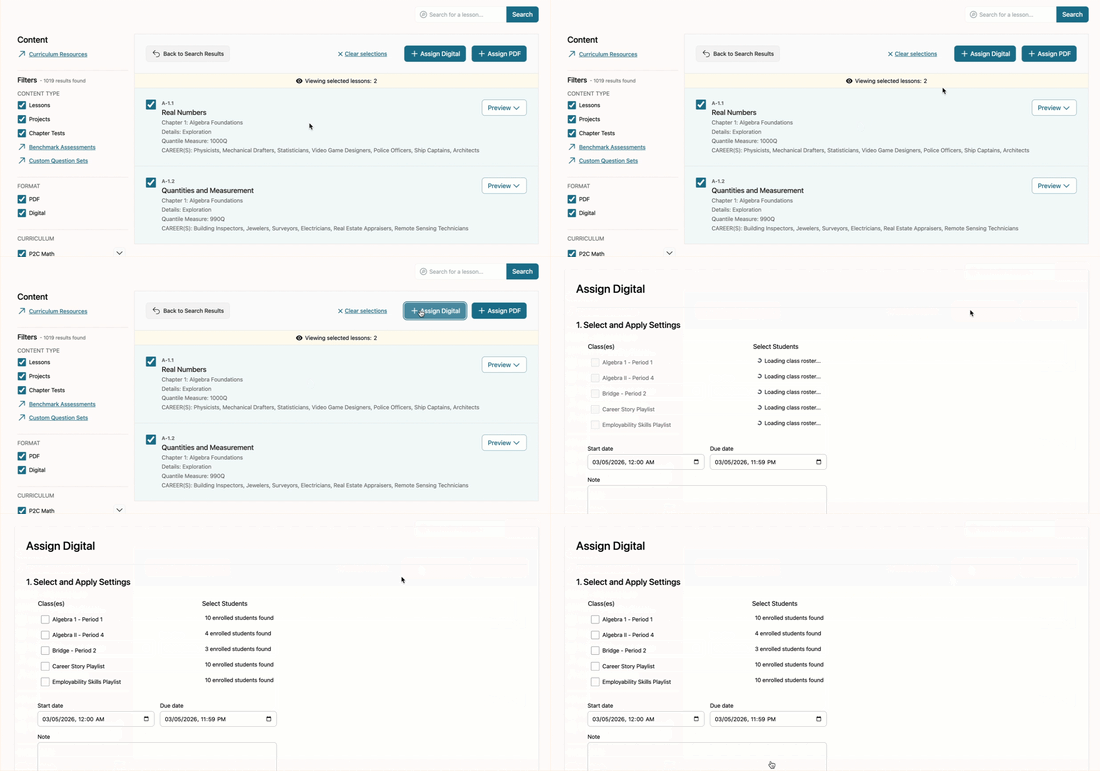
From the Curriculum Library, teachers are able to choose up to 20 items at one time and bulk assign them to their classes and students.
For guidance on navigating and using the Curriculum Library, refer to the Browsing the Curriculum Library article.
After selecting the content to assign and clicking Assign Digital or Assign PDF, you will be directed to the Assign page.
Note: Benchmark Assessments and Custom Question Sets must be assigned from their respective pages. Once there, the assigning process works the same.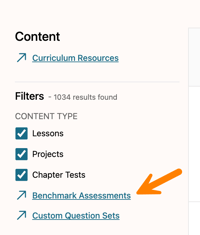
Select and Apply Settings
There are two steps to assigning content.
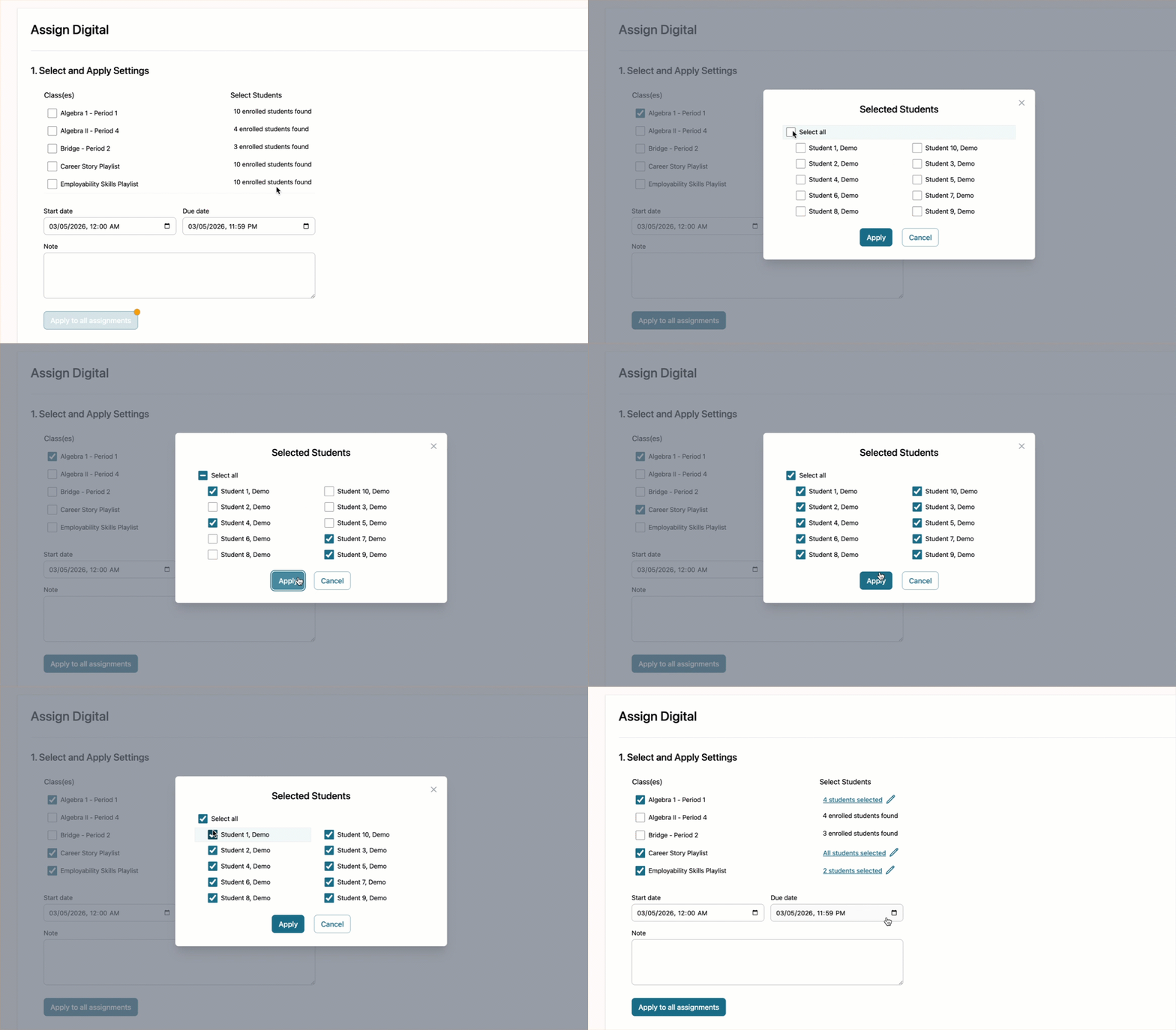
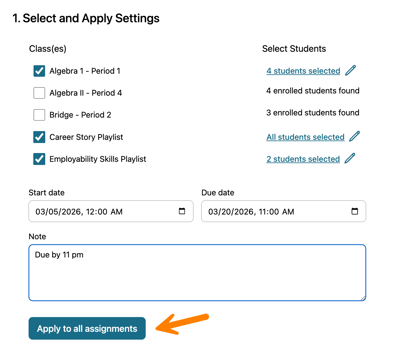
In Step 1, select the classes and students who should receive the assignment. By default, assignments are applied to the entire class. To assign content to specific students only, click the pencil icon next to the class name.
Next, choose a Start Date and Time and a Due Date and Time, and add a Note if desired.
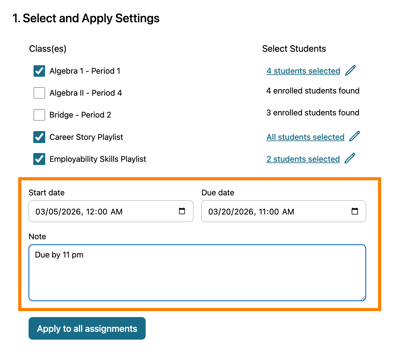
When you have finished configuring these settings, click Apply to all assignments.
Review, Make Adjustments, and Assign
Step 2 involves reviewing the assignment details in the table.
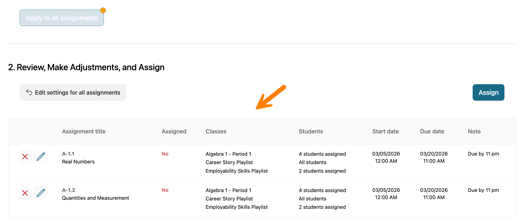
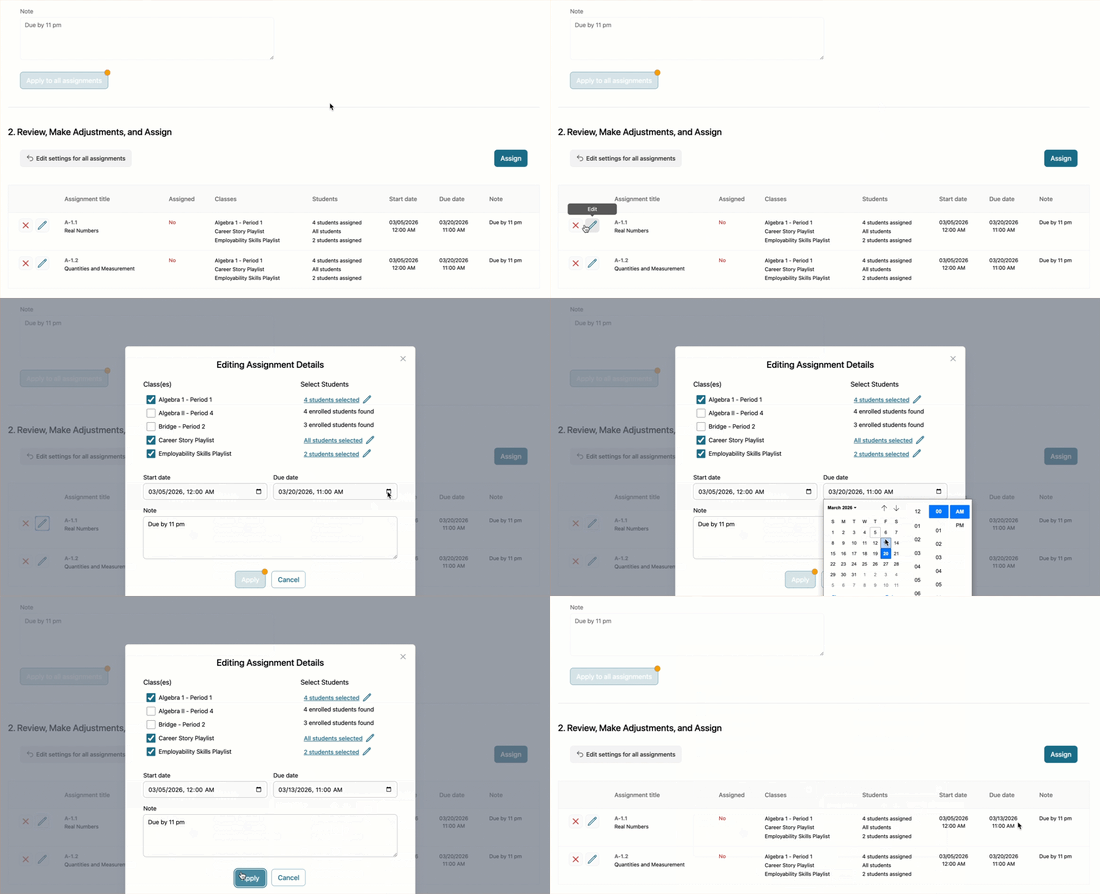
To edit settings for an individual assignment (for example, adjusting which students receive a specific item), click the pencil icon next to that assignment. A settings window will open where you can make changes.
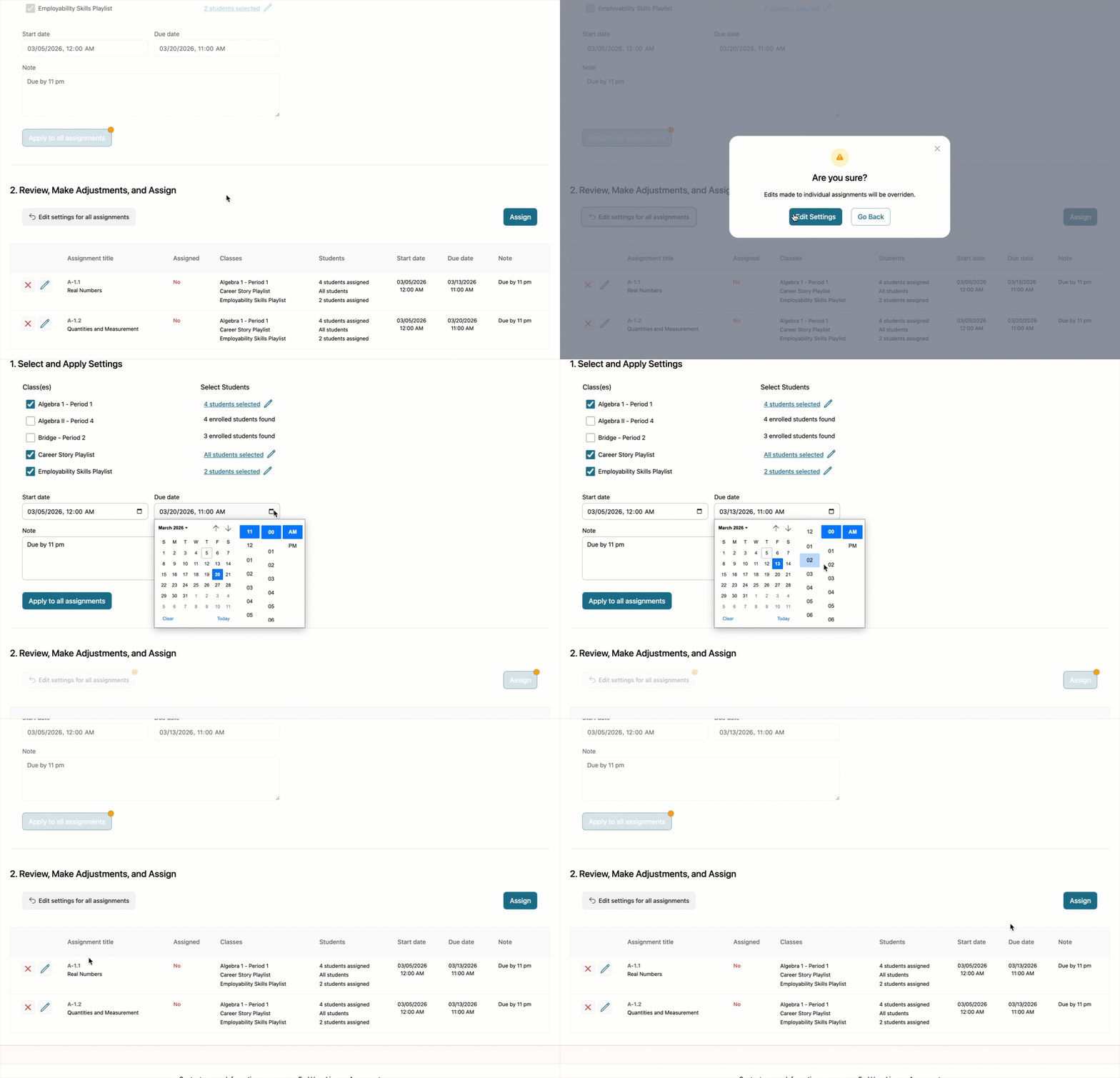
To update settings for all assignments at once (for example, if you entered the wrong due date), click Edit settings for all assignments. You will be returned to Step 1, where you can make adjustments. Be sure to click Apply to all assignments again to update the table.
Warning: Editing settings for all assignments will override any individual edits previously made.
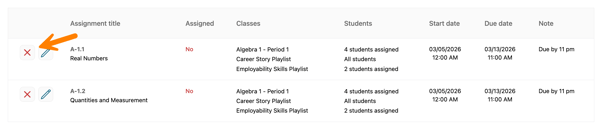
To remove an assignment from the list, click the remove (X) icon.
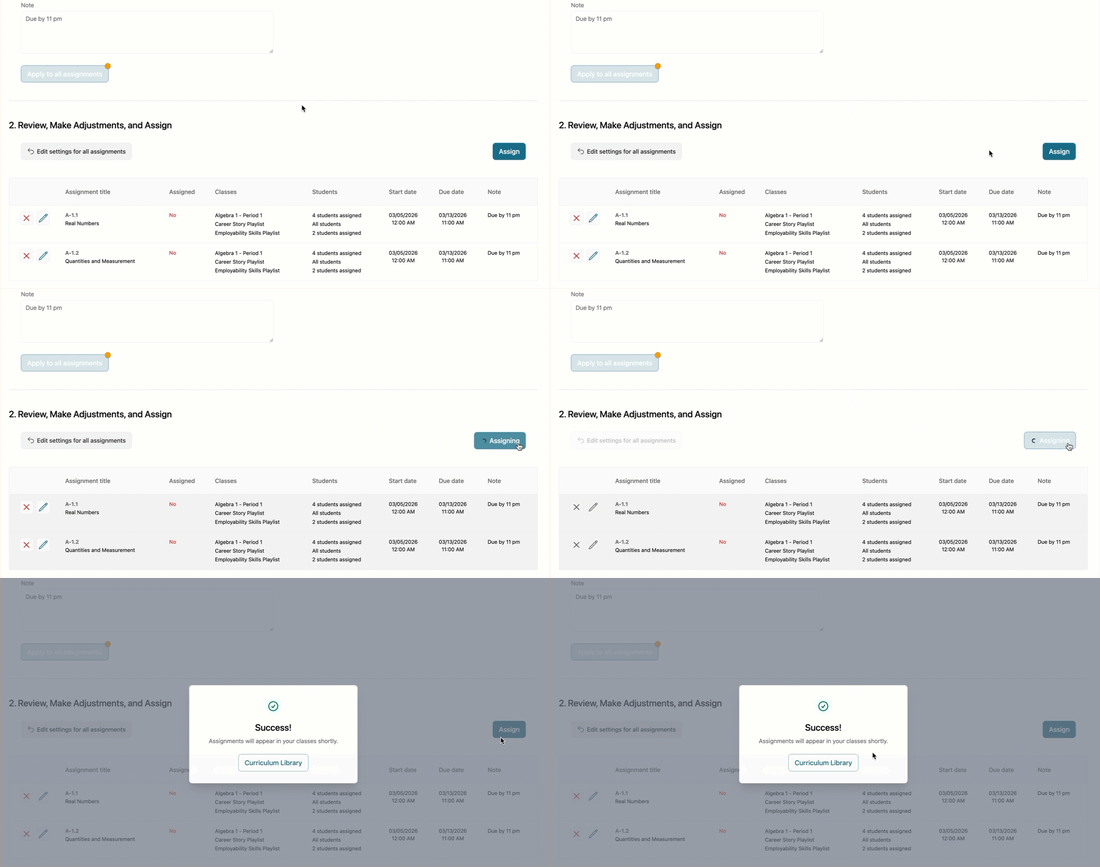
Once you have reviewed your selections and made any necessary edits, click Assign to send the assignment(s) to your selected classes.
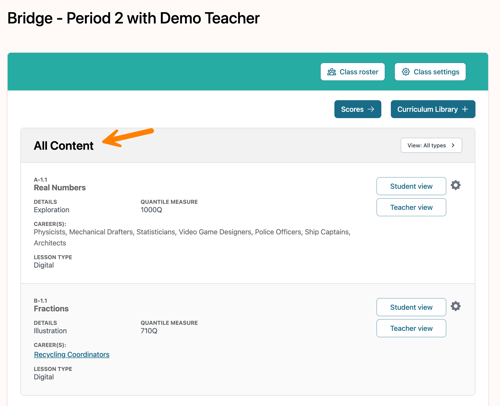
After assigning content, teachers can view it within each class under the All Content section.
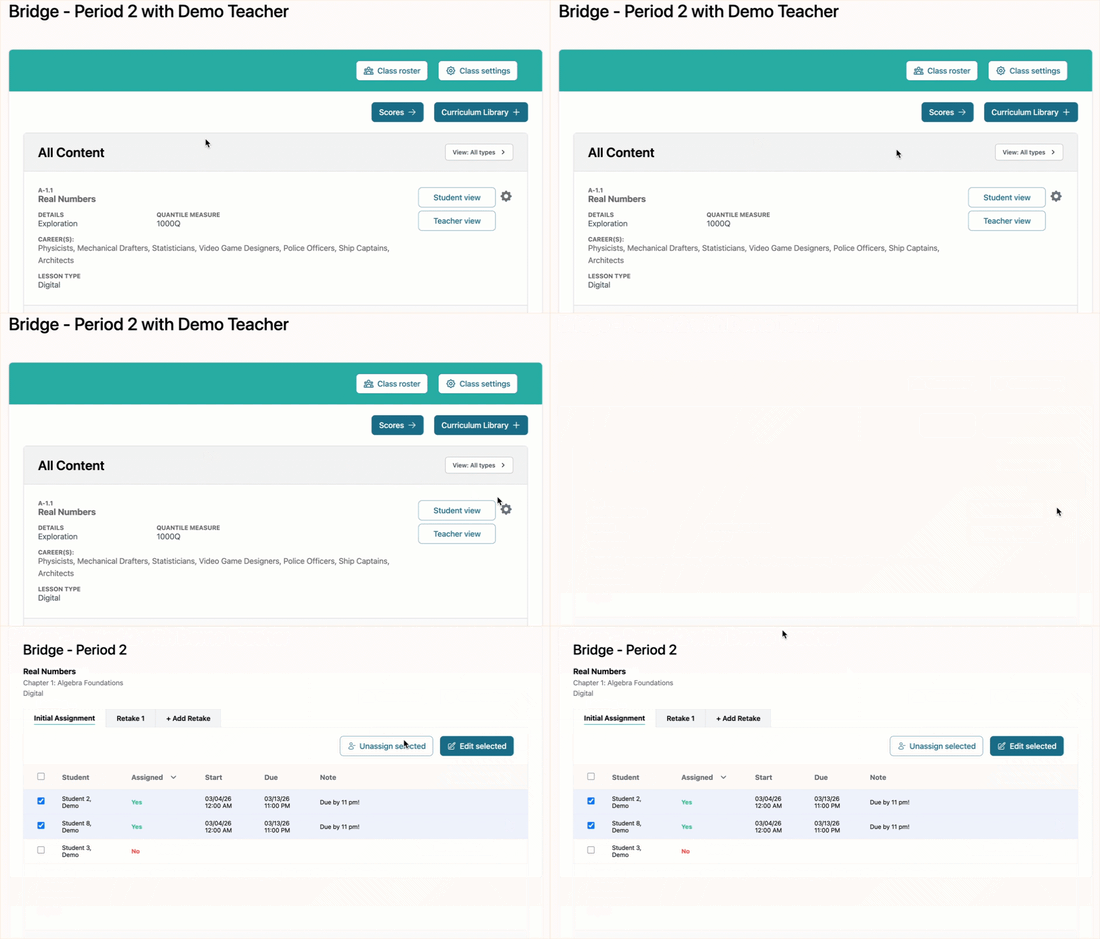
To make changes after assignments have been sent, navigate to the assignment within the individual class and click the gear icon to access the Assignment Details page.
For instructions on updating assignments after they have been assigned, please refer to the Editing Assignments article.