
The Curriculum Library provides teachers with one centralized location to browse, preview, and select content from all of P2C’s curriculum.
Navigation
Filter and Search
Preview Content
Select Content to Assign
Navigation
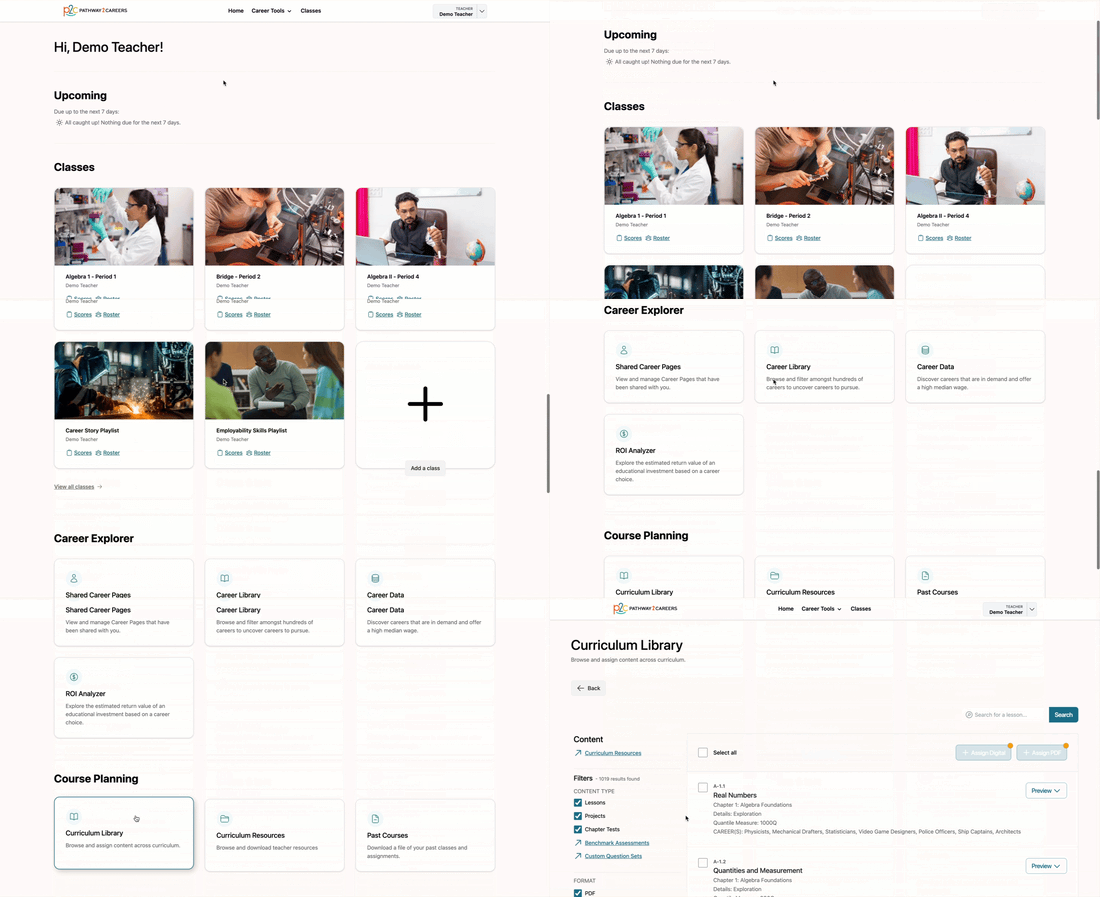
Teachers can access the Curriculum Library from two locations.
From the Home Page, navigate to the Course Planning section and select Curriculum Library.
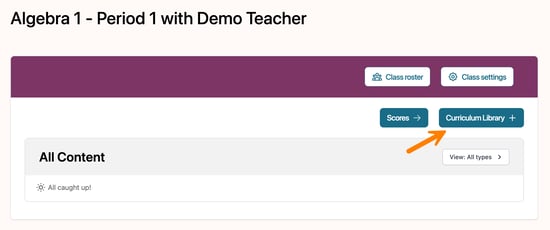
The Curriculum Library can also be accessed directly from a class by clicking Curriculum Library.
Filter and Search
The Curriculum Library includes filtering tools and a search bar to help you locate the content you need.
To refine your results using the filters, you may select multiple options at one time. Available filters include:
-
Content Type (e.g., lessons, projects, chapter tests)
-
Format (PDF or Digital)
-
Curriculum
-
Chapters
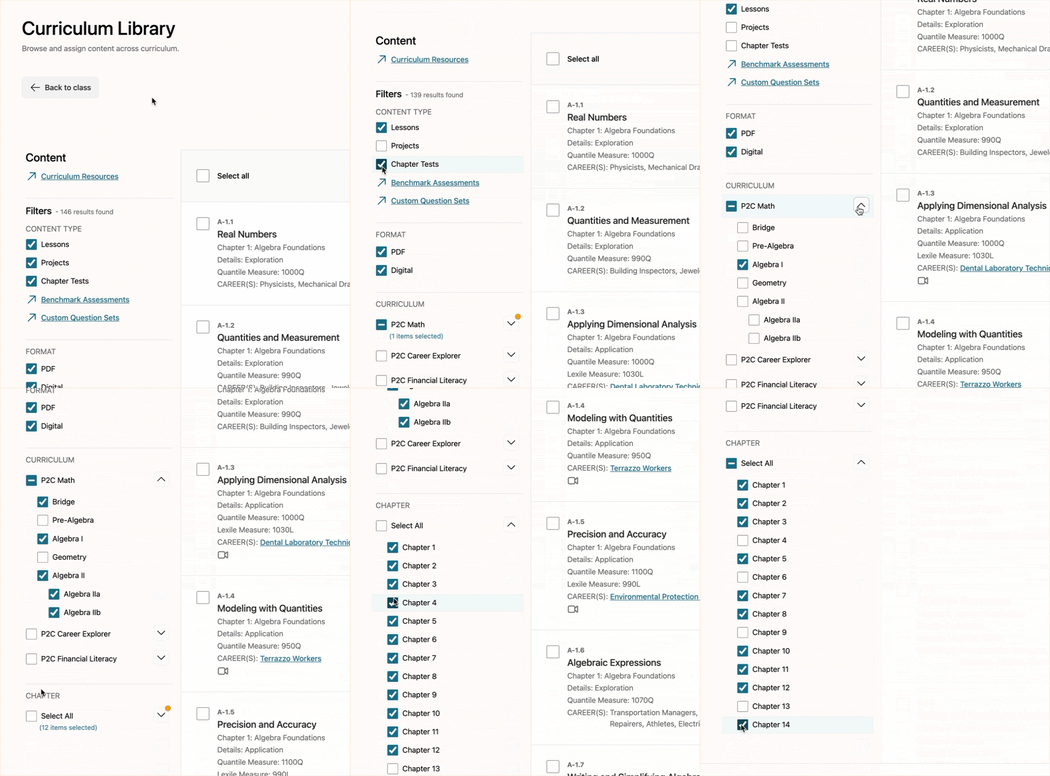
Using multiple filters helps streamline the process of locating content and comparing available options.
Please note that Custom Question Sets has unique filters. Please refer to the Custom Question Sets article for more information.
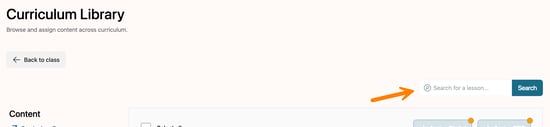
Another way to find content is by using the search bar, which allows you to search content by keywords and standards.
Preview Content
The Curriculum Library allows teachers to preview both Student and Teacher editions of available content before assigning it.
To do so, open the Preview drop-down menu and select one of the available options:
-
Digital Teacher View
-
Digital Student View
-
PDF Teacher View
-
PDF Student View
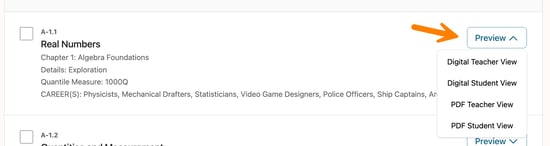
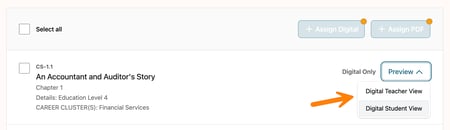
Once selected, the preview will open in a new browser tab.
Please note that some items are available in PDF or Digital format only.
Select Content to Assign
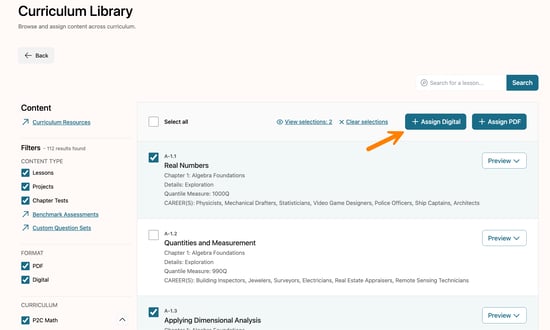
When you are ready to assign content to your classes, begin by selecting the checkbox next to each item. You may select up to 20 items at a time. You can continue filtering and searching without losing your current selections.
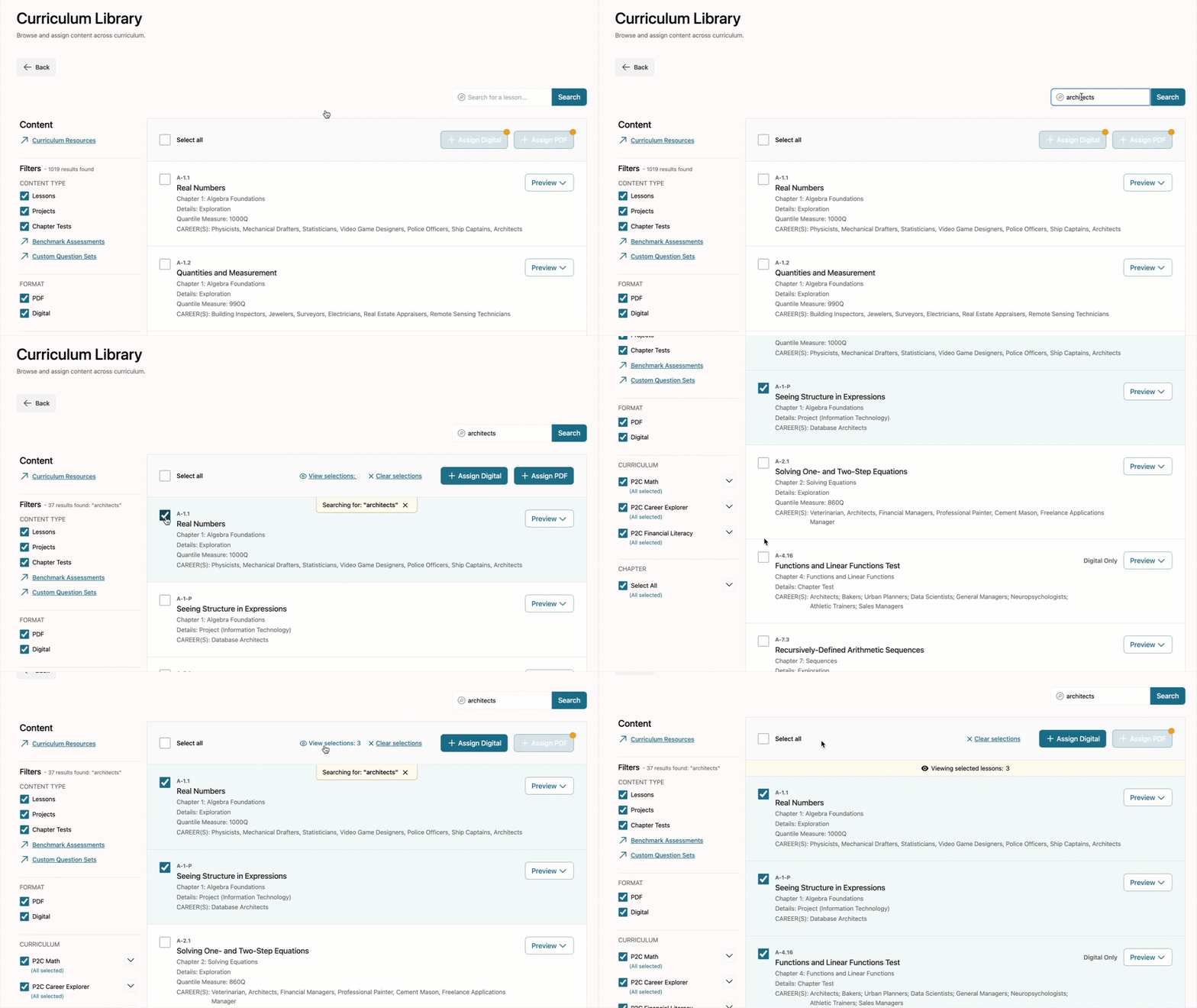
To review the items you have selected, click View selections.
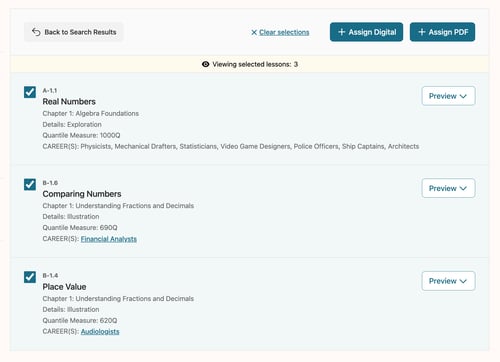
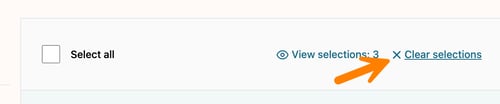
To remove an individual item, uncheck its checkbox. If you want to remove all selected items and start over, click Clear selections.
Once you have selected the content you want to assign, click either Assign Digital or Assign PDF.
Notes to Consider:
-
Some content is available in PDF or Digital formats only. When selecting items, consider which format you would like to assign first.
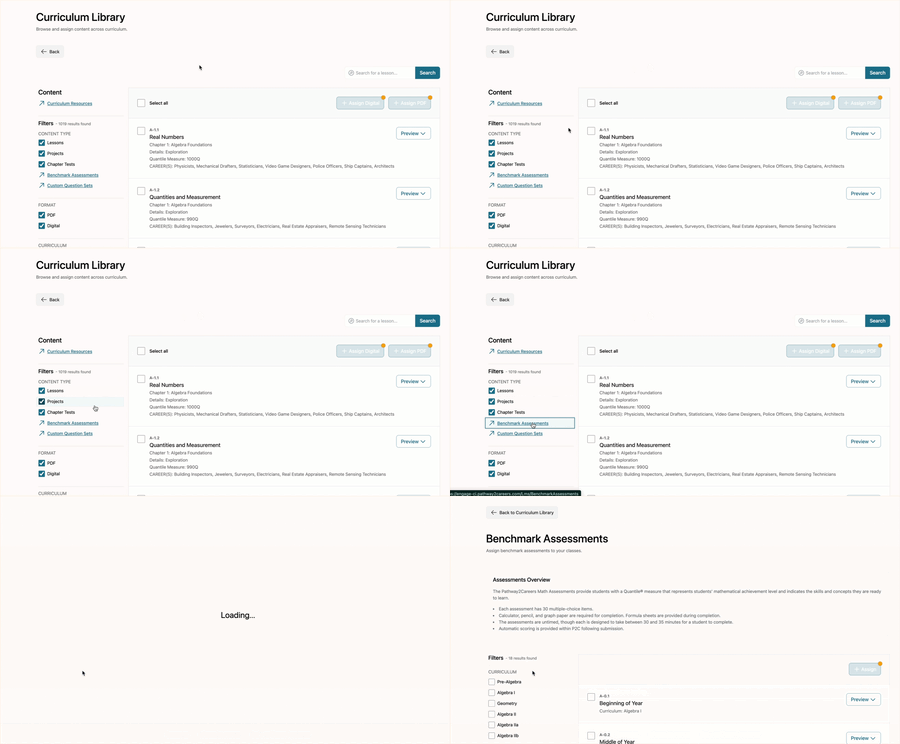
- Benchmark Assessments and Custom Question Sets must be assigned from their respective pages, located under the Content Type filters. From those pages, the item selection and assignment process works the same way.
-
Only one Benchmark Assessment may be selected at a time.
- For guidance on assigning content to your classes, please refer to the Assigning Content article.