
District Admins can use the Course Catalog import template to bulk add or update courses in the High School Planner. This guide explains how to complete the template, save your file, and review your courses before importing.
Downloading the Template
Completing the Template
Reviewing the Data
Saving and Importing the Template
Downloading the Template
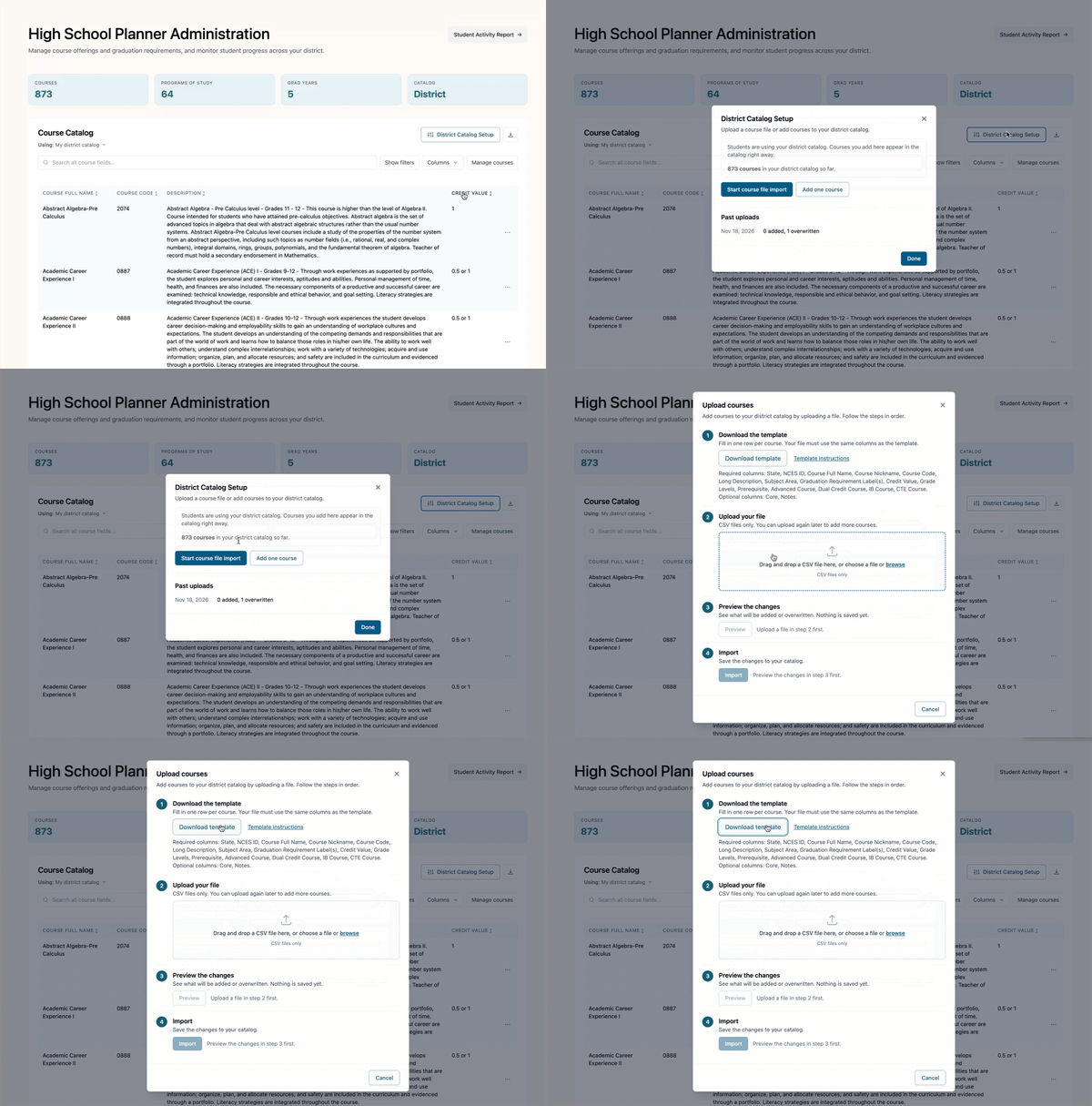
Within the High School Planner, District Admins can download the Course Catalog Template.
To begin, open District Catalog setup, and click Start course file import.
Click Download template.
Completing the Template
Before you begin completing the template, here are some things to keep in mind:
-
Enter one course per row, starting in row 2.
-
Keep the column names in row 1 unchanged. Do not rename, reorder, or delete columns.
-
Before entering course codes, format the Course Code column as Text in Excel. This helps preserve leading zeros—for example,
0606instead of606.
The columns below follow the same order as the template. Fields marked Required must be completed for every course. Optional fields can remain blank.
| Column | Requirement | Instructions | Example |
|---|---|---|---|
| State | Required | Enter the full state name, not the abbreviation. Use the same state on every row. | New Mexico |
| NCES ID | Required | Enter your district’s seven-digit NCES (LEA) ID. Use the same ID on every row. | 3500060 |
| Course Full Name | Required | Enter the official course name. This appears in the catalog and on student plans. | Algebra I |
| Course Nickname | Optional | Enter a short name students will recognize. Leave blank if the full name is already short. | Alg I |
| Course Code | Required | Enter your district’s unique course code. Use one code per course and preserve leading zeros. Format this column as Text before entering codes. | 0606 |
| Long Description | Required | Enter one or two sentences describing the course. Use plain text without line breaks. | Students study linear equations, functions and quadratics. |
| Subject Area | Required | Enter the subject the course belongs to. Use consistent wording for courses in the same subject. | Mathematics |
| Graduation Requirement Label(s) | Required |
Enter the requirement names the course counts toward. Separate multiple labels with a semicolon. |
Social Studies; Elective |
| Credit Value | Required | Enter the credits earned for completing the course. Use numbers only. Separate multiple credit values with a semicolon. | 0.5; 1 |
| Grade Levels | Required | Enter the grades the course is offered to. Separate grades with a semicolon and a space. | 9; 10; 11; 12 |
| Prerequisite | Required | Enter Yes or No to indicate whether this course has a prerequisite. | Yes |
| Advanced Course | Required | Enter Yes or No to indicate whether this is an advanced course, such as AP or Honors. | Yes |
| Dual Credit Course | Required | Enter Yes or No to indicate whether the course earns college credit through dual enrollment. | No |
| IB Course | Required | Enter Yes or No to indicate whether this is an International Baccalaureate course. | No |
| CTE Course | Required | Enter Yes or No to indicate whether this is a Career Technical Education course. Courses with a Yes in this field will be available to add to a Program of Study. | No |
| Core | Optional | Enter Yes or No to indicate whether this is a core course, or leave blank. | Yes |
| Notes | Optional | Enter additional information for admins, such as fees or recommended courses. Students may see these notes. | Course fee: $25 per year |
Reviewing the Data
Before importing the file, confirm that:
- Each row contains one course and all required fields are complete.
- Course codes are unique within your file and retain any leading zeros.
- Graduation requirement labels match the platform’s requirement names exactly.
- Multiple graduation requirement labels and grade levels use semicolons to separate the values.
- Credit values contain numbers only.
- Required Yes/No fields contain Yes or No.
- Subject names use consistent wording.
- Cells do not contain line breaks, and course codes avoid special characters.
IMPORTANT: Importing a course code that already exists overwrites that course. Review existing-course matches carefully in the upload preview.
Saving and Importing the Template
Once you have completed the template, save the file as CSV UTF-8 (Comma delimited).
To import your file, follow the steps on the Upload courses box within the High School Planner.
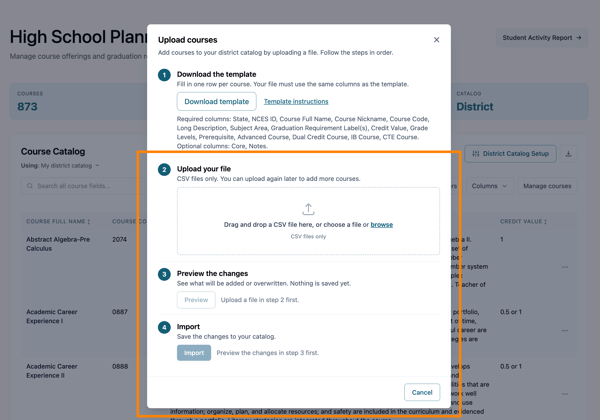
Tip: Start with 5–10 courses to check the format before uploading the rest of your catalog.
For more information on how to manage the course catalog and the programs of study, refer to the following articles: