
District Admin Reports provide a centralized view of district activity, performance, and engagement within the platform, helping administrators monitor progress, review student and class performance, and support student and teacher success.
For more information on the District Admin Role, see the P2C District Admin Quick Start Guide article.
Report Categories
Navigation
Report Features
Bookmarked Reports
Filters and Search
Specialized Class Reports
Report Categories
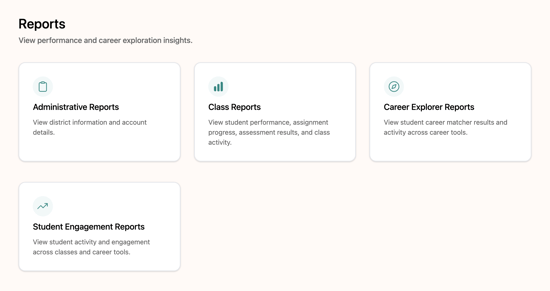
Reports are organized into four categories:
- Administrative Reports: These reports provide access to district-level administrative data, such as account details and contract information.
- Class Reports: These reports provide data on class activity, including student performance, assignment progress, and assessment results.
- Career Explorer Reports: These reports provide results from Career Explorer tools, including student progress on My Career Page, matcher results, and activity across career tools.
- Student Engagement Reports: These reports provide insights into student activity and engagement within the platform, including active students, student activity, and frequently visited pages.
Notes:
- District Admin reports reflect data from currently active classes.
- For more information about the snapshot metrics displayed on the Home page and each report category page, see the Snapshot Metrics article.
Navigation
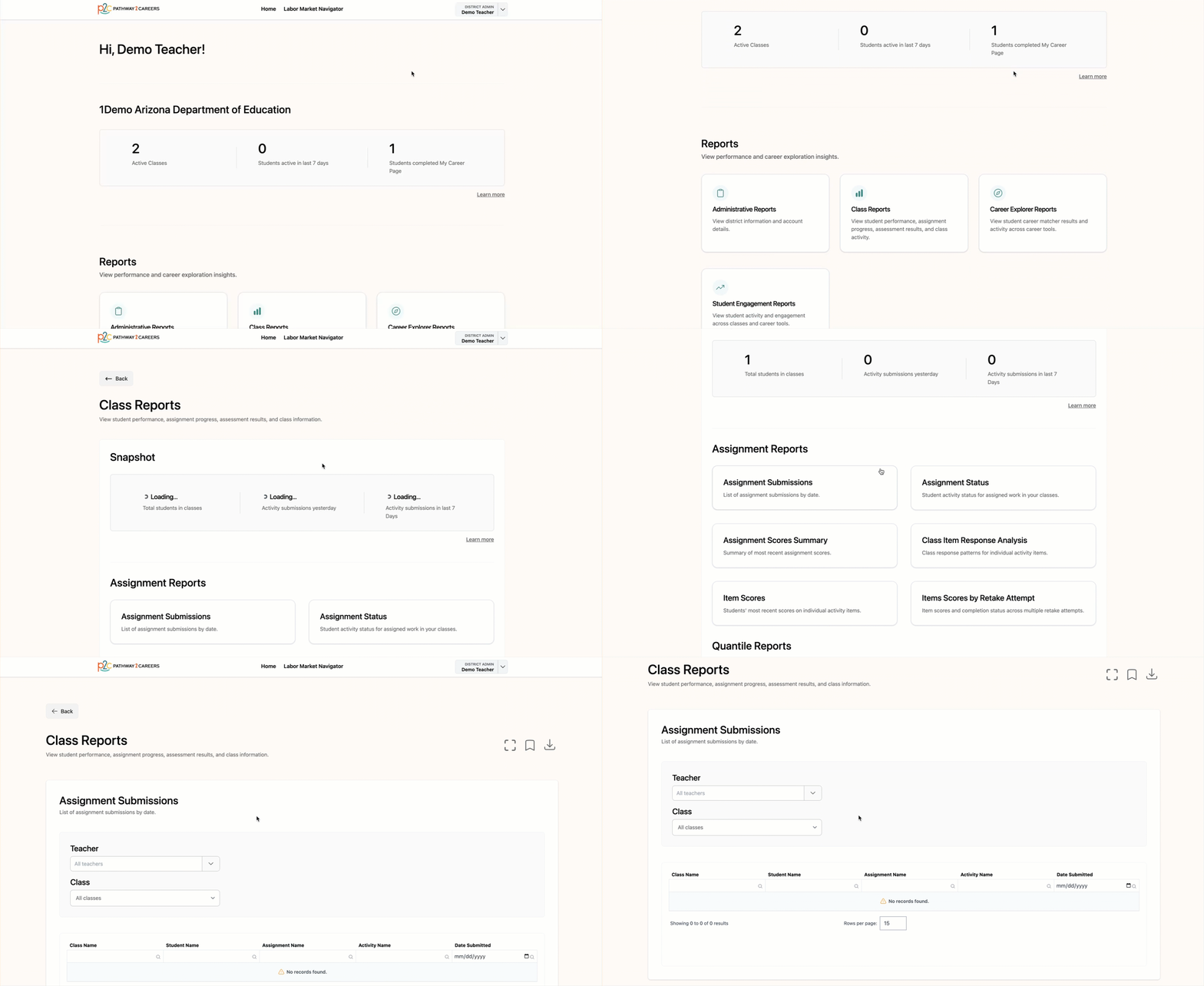
To access the Reports, log in to your account and scroll to the middle of the Home page.
Select the desired report category, then choose the report you would like to view.
Report Features
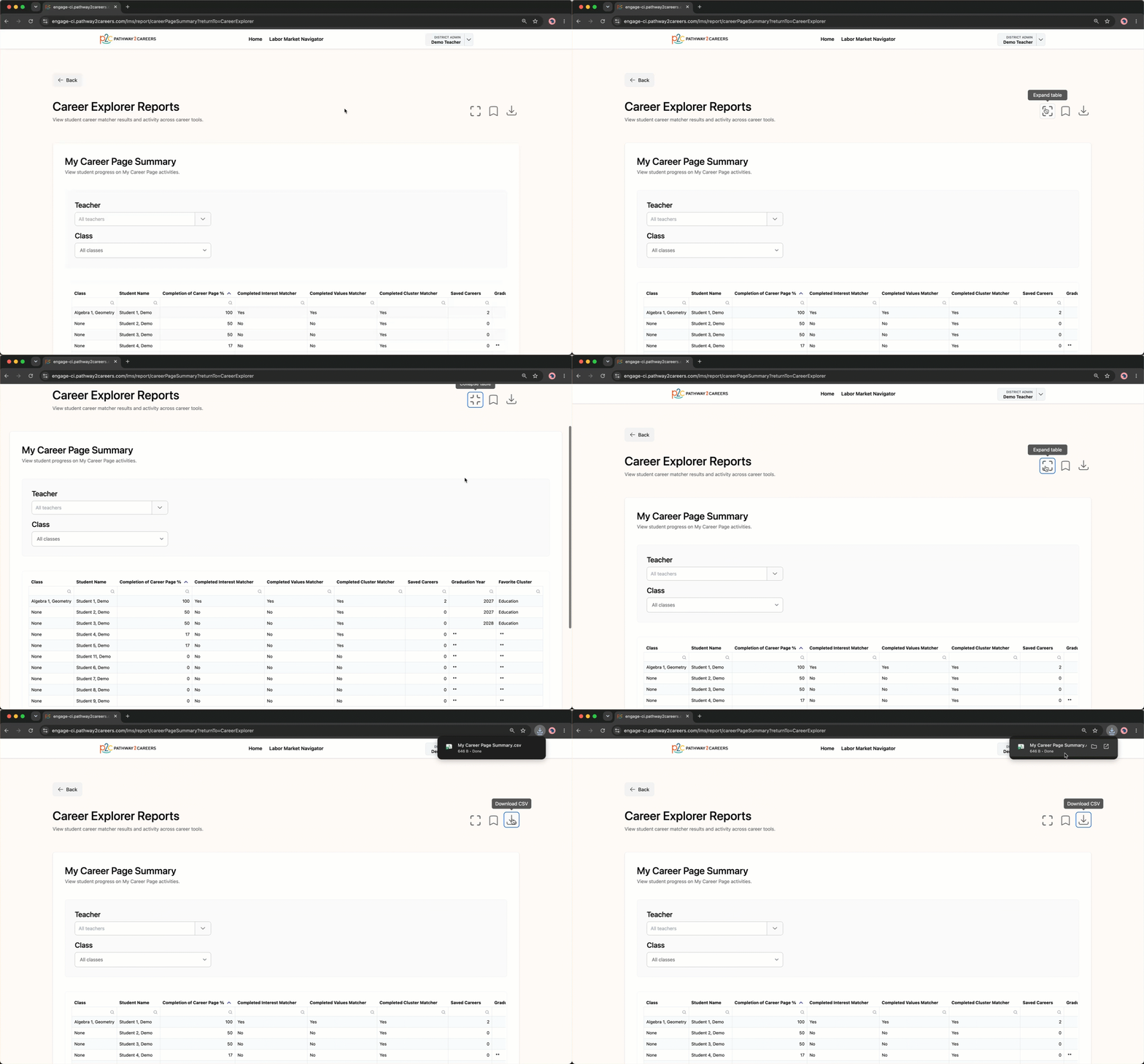
Once you open a report, you can adjust the table view, download the report, filter and search the data, or bookmark the report for quick access.
Settings
From the report, you can expand the table view or download the report as a CSV file.
Bookmarked Reports
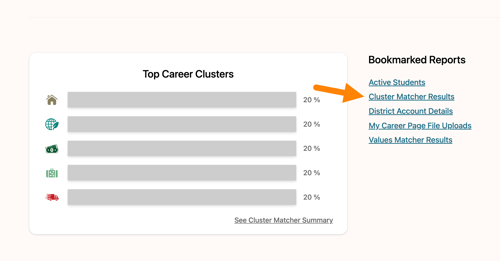
Bookmark frequently used reports for quick access from the Home page.
To bookmark a report, open the desired report and select the bookmark icon.
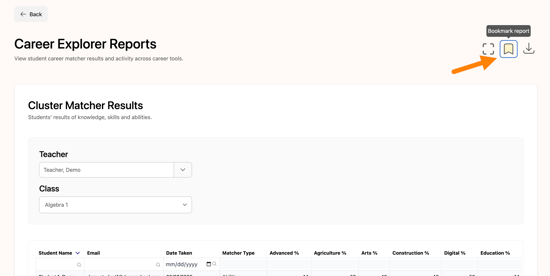
The report will then appear on the Home page under Bookmarked Reports.
Filters and Search
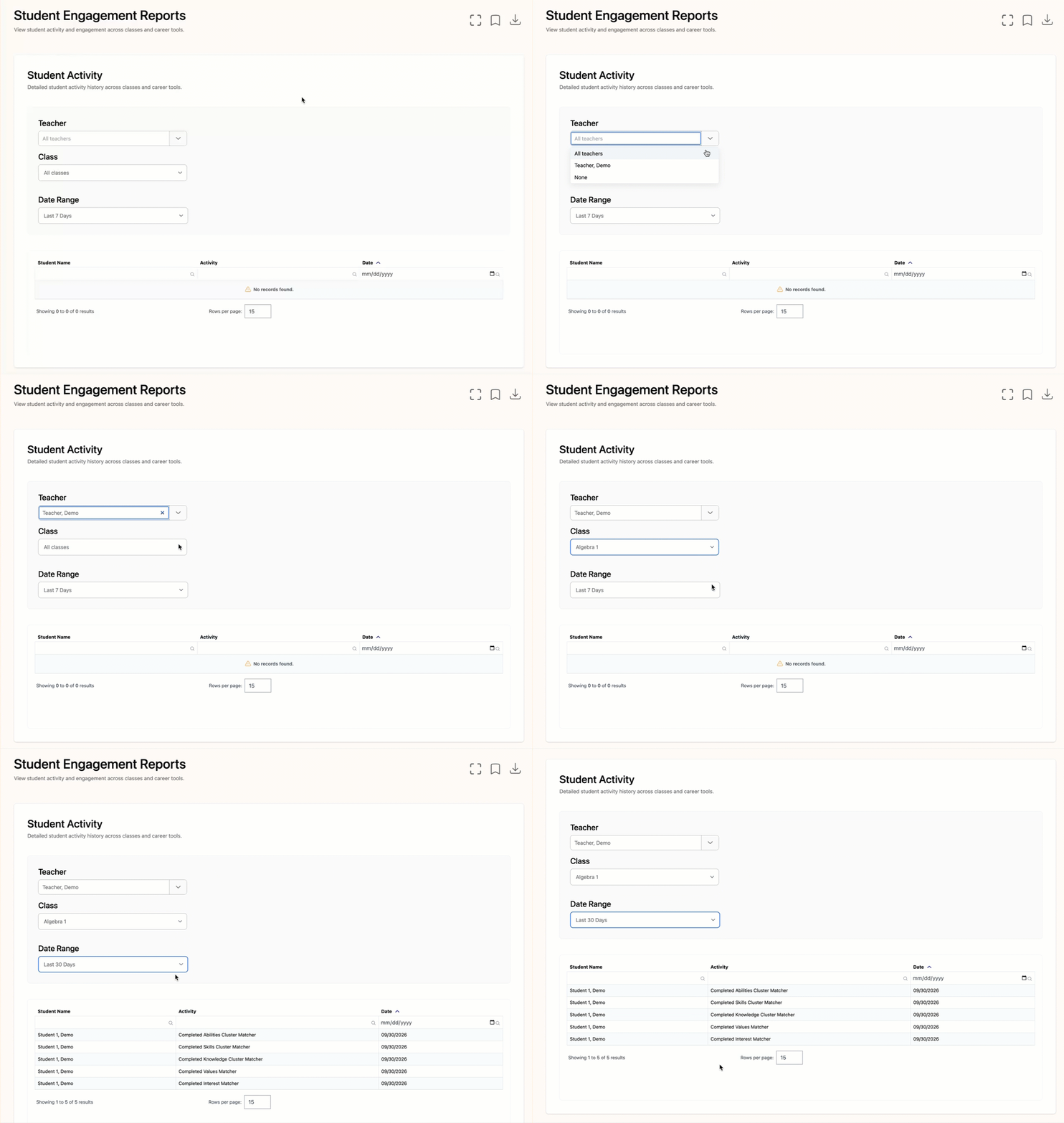
Most reports include filters that help you narrow the data displayed. Almost all reports include a Teacher and Class filter, and some include additional filters, such as Assignment, Activity, and Date Range.
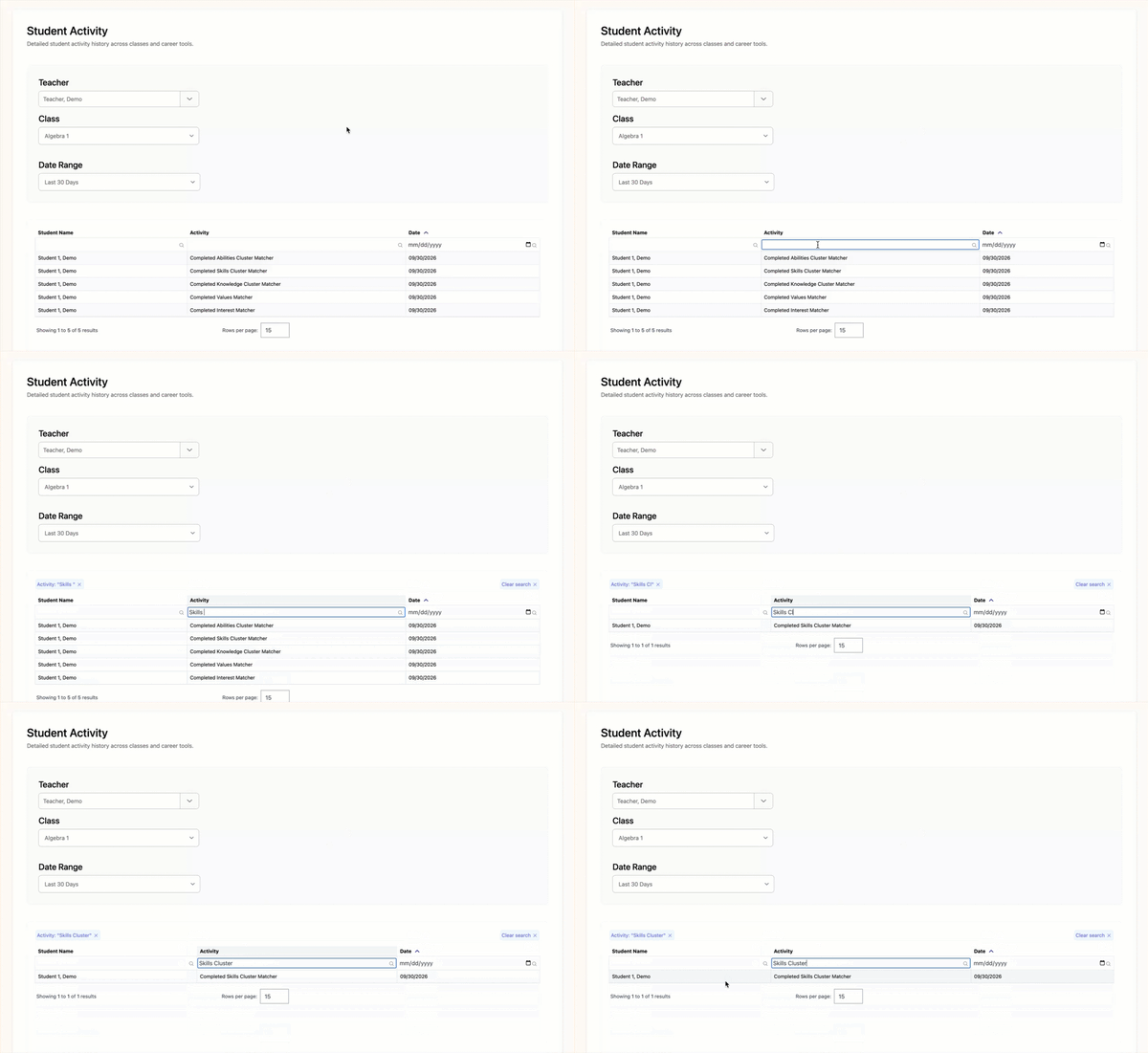
Most reports also include column-level search fields that allow you to locate specific information quickly. Enter a student name, date, or other value into the search field of a column. Matching results will automatically display in the report.
Specialized Class Reports
The following reports contain more specialized data than other class reports and may be helpful when reviewing activity results in greater detail.
-
Assignment Scores Summary: Provides a summary of most recent assignment scores.
-
Class Item Response Analysis: Provides class response patterns for individual activity items.
-
Item Scores: Displays students' most recent scores on individual activity items.
-
Items Scores by Retake Attempt: Displays item scores and completion status across multiple retake attempts.